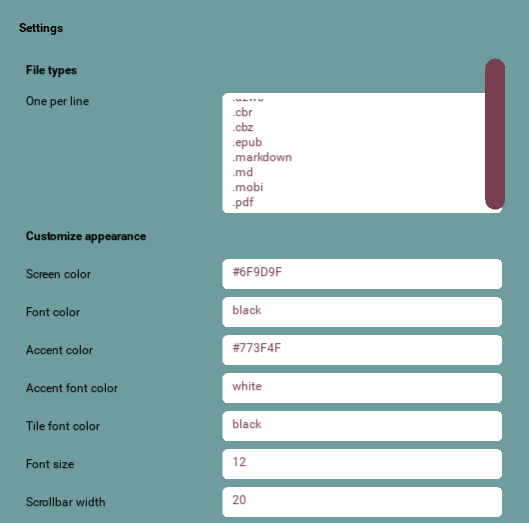
Press the Settings button in the main screen to adjust your Libiry settings.
File types
Configure which file types are displayed in the Settings screen:
.epub
.mobi
.azw
.azw3
.pdf
.cbr
.cbz
.md
.rtf
.mp3
To add a new type, add its extension on a new line. All file types except .opf can be added to your library. You could add .rtf, .mp3, .txt and .docx, for example. Note that if you add .md to your selection, only markdown files that are not sidecars will be displayed in your book grid.
Colors
Customize all colors:
- Background
- Buttons
- Text
- Search box
- Tiles
Options
| Setting | Description |
|---|---|
| Rounded corners | Enable/disable rounded buttons |
| Only selected file types | Filter by configured file types |
| Fuzzy search | Enable character-sequence matching |
| Scrollbar width | Adjust scrollbar size |
| Scrollbar always visible | Never auto-hide scrollbars |
| Show book title | Display title on cover tiles |
| Show tags | Display tags on cover tiles |
| Font size | Adjust all text sizes |
Customize appearance
Colors
Hexadecimal codes (‘#6F9D9F’, ‘#FFF’) and color names (white, black, red, blue, lightblue etc.) can both be used. RGB tuples (111, 157, 159) cannot.
Use this color overview to pick the colors that you like.
| Default setting | Description | Default |
|---|---|---|
| Background color | Main window background | #6F9D9F |
| Button color | Button background | #793F4E |
| Button font color | Button text | white |
| Search box color | Search input background | white |
| Tile font color | Text on book tiles | black |
| Background font color | Status bar text | black |
| Search box font color | Search input text | black |
| Setting | Values | Description |
|---|---|---|
| Rounded corners | Y/N | Enable rounded button corners |
| Scrollbar width | Number (pixels) | Width of scrollbar |
| Scrollbar always visible | Y/N | Never auto-hide scrollbars |
| Show book title | Y/N | Display title on cover tiles |
| Show tags | Y/N | Display tags on cover tiles |
| Font size | Number (points) | Global font size |
Tip: Increase the font size for better readability for high DPI displays
Tip: increase the scrollbar width on touch screens for easier touch:
Behavior
| Setting | Values | Description |
|---|---|---|
| Only selected file types | Y/N | Show only the configured file types |
| Fuzzy search | Y/N | Enable fuzzy character matching |
Field names
Rename field names for compatibility with:
- Goodreads exports
- Obsidian plugins
- Custom setups