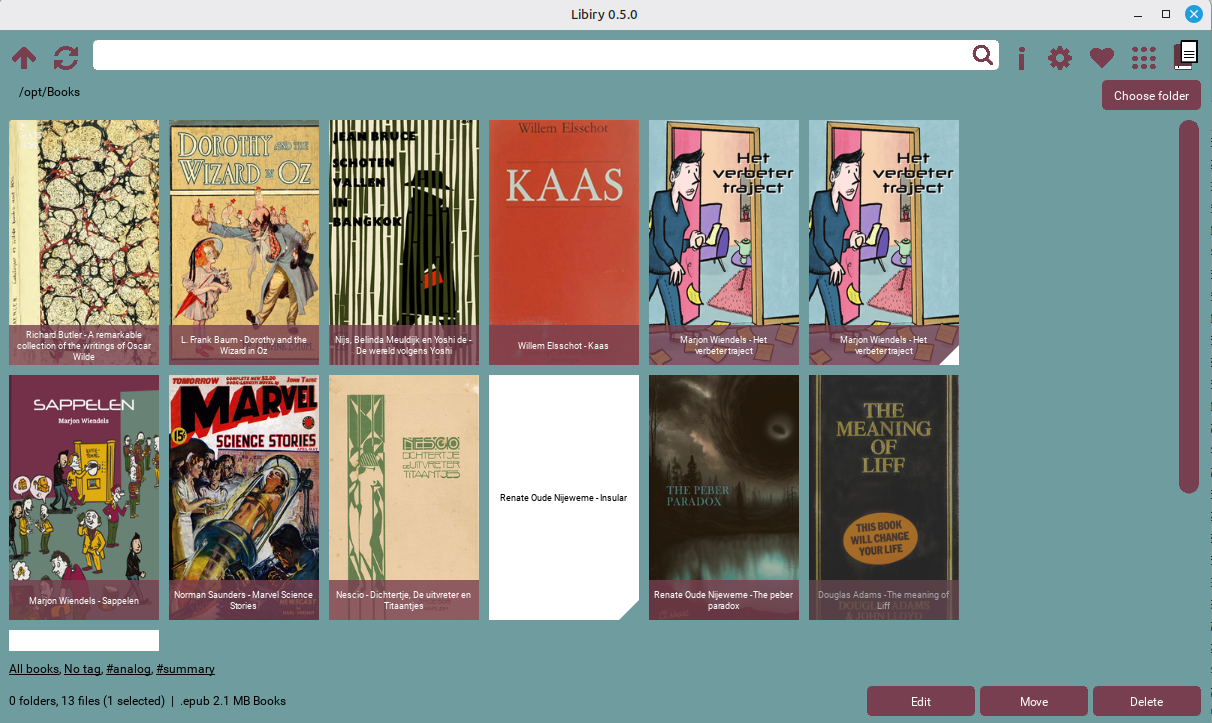
The grid view displays book covers with optional title and tag overlays.
On the settings panel you can customize colors, fonts, scrollbar appearance, and more.
With the tag filter at the bottom you can navigate through your book collection.
Top area
Action buttons
| Button | Icon | Function | Alternative |
|---|---|---|---|
| Up |  | Move up one folder level | Alt-Left, Alt-Up |
| Refresh |  | Reload the current view | F5 |
| Search box |  | Search within the current folder, including up to 10 subfolders. Turn on fuzzy search in the settings to find more matches. To find all epubs, type ‘.epub’. | |
| Information |  | Go to the manual | |
| Settings |  | 1.6 Customize Libiry | |
| Support |  | Go to the support page | |
| Other apps |  | Go to the satellite apps | |
| Twins |  | Turn duplicate detection on/off |
Location bar
Shows the default folder that opens when Libiry and the other apps start. Click on the folder button at the right to navigate to another folder.
Grid area
Folder tiles

- Shows folder icon and name
- Can contain subfolders and books
- A left click selects the folder for editing, moving or deleting
- A double click opens the folder
- A right click opens the folder’s top folder
Book tiles

- Shows cover image when available, shows book icon otherwise (a blank page)
- Shows author + title when there is no cover
- Showing an author + title overlay on covers is also possible
- A left click selects the book for editing, moving or deleting
- A double click opens the book in its default reading app
- A right click opens the book’s folder
Visual indicators
| Indicator | Meaning |
|---|---|
| White triangle | Book has “summary” tag |
| Triangle in background color | Book has “analog” tag |
  |
When the book has a “summary” tag, an aubergine triangle is shown. Unless you show the book title, in which case a white triangle is shown over the aubergine book title banner. When the book has an “analog” tag, a teal triangle is shown. When you customize Libiry’s colors, these colors change too.
For books that have both an analog and a summary tag, the summary triangle is shown.
Selection commands
- Click - Select single book
- Ctrl+Click - Add to selection
- Ctrl+A - Select all visible books
- Right-click - Context menu
Bottom area
Tag list
- All books - Show all books (click to reset filter)
- No tag - Filter to books without tags
- Tags sorted by frequency
- … indicator that more than 99 tags are available for this selection
The tags you see are the tags that exist within the folder you selected. If you double click on a tag, say Science Fiction, the grid will show all books with that tag within the folder you selected.
Status bar
- Selected count - Number of selected books
- Total count - Total books in current view
- Book information when a single book is selected
- Action information about the last requested action
Action buttons
| Button | Function |
|---|---|
| Edit | Edit book data |
| Move | Move selected files to another folder |
| Delete | Move selected files to trash |
Location
- Set default library folder
- Persists between sessions
Scrollbar
- Always visible (configurable)
- Clickable to jump to position
- Draggable for smooth scrolling
- Width adjustable in settings
Mouse/touch
- Mouse wheel to scroll
- Touch/drag to scroll on touch devices
- Click the scrollbar track to jump
Accessibility notes
For many mouse movements, alternative key combinations exist
Libiry uses 8 Glossary/Kivy, which creates its own UI rather than using native OS controls. This means:
- Screen readers are not fully supported
- Keyboard navigation is limited
- High contrast themes must be configured manually
Zoom
| Shortcut | Action |
|---|---|
| Ctrl+ or Ctrl= | Zoom in (larger tiles) |
| Ctrl- | Zoom out (smaller tiles) |
Selection
| Shortcut | Action |
|---|---|
| Click on grid tile | Select this tile and deselect all others |
| Click on empty grid area | Deselect all |
| Ctrl+Click | Toggle this tile on or off and leave all other tiles unchanged |
| Shift+Click | Select tile range |
| Ctrl + A | Select all visible books |
| Double click on book | Open book in reading app |
| Double click on folder | Open folder |
| Scroll wheel | Scroll grid |
| Click scrollbar track | Jump to position |
| Drag scrollbar | Smooth scroll |
| Escape | Close popup/dialog |
Touch actions (mobile/tablet)
| Action | Result |
|---|---|
| Tap on book | Select book |
| Tap on folder | Open folder |
| Long press | Open context menu |
| Swipe | Scroll grid |
| Pinch | Zoom in/out |
Tips
Quick selection
Use Ctrl-A to select all visible books, then use the context menu to apply batch operations like moving or tagging.
Fast navigation
Click on any part of the location path in the top bar to quickly jump to that folder.
Tag filtering
Click any tag in the status bar to instantly filter to books with that tag. Click “All books” to reset
Search options
- Searches up to 10 levels deep
- Case-insensitive
- Fuzzy search is possible (matches characters in any order). You can turn it on in the Settings
- Type one of the supported file types in the search box (f.e. “.epub”) to find all books with that file type