System requirements
For Windows: Windows 10/11, Python 3.11 or 3.12
For Linux: Ubuntu 20.04+, Python 3.11 or 3.12
For the one-time package install you need an internet connection.
How to install Libiry
Windows
Option A
Download LibirySetup.exe from https://github.com/Sappelen/Libiry/releasesand run it
Tips:
- Windows may show a warning. Click ‘More info’ → ‘Run anyway’. This is normal for new software without a commercial certificate
- In Settings → Apps → Advanced app settings, set “Where to get apps” to “Anywhere” (or “Anywhere, but let me know if there’s a comparable app in the Store”)
- Right-click on LibirySetup.exe. Go to Properties. At the bottom of the General tab: check Unblock
- On corporate machines with strict policies, Windows may block the app completely. In that case, you can use Option B
Option B
-
Download Python from python.org/downloads. During installation, check “Add Python to PATH”. If needed, the Troubleshooting section gives a more detailed instruction
-
Download the latest Libiry zip file from https://github.com/Sappelen/Libiry/releases
-
Right-click the ZIP → Extract All. The location doesn’t matter. The downloads folder is fine
-
Open the extracted folder in the file explorer. Click the address bar at the top, type cmd, press Enter
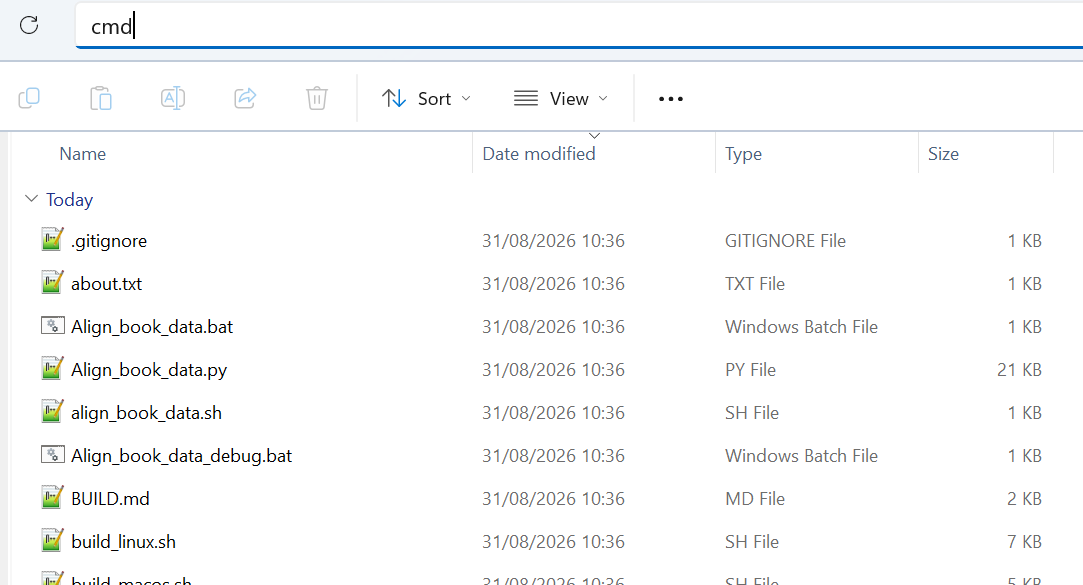
-
A command prompt has now opened in that folder. In the command prompt, type exactly: powershell -ExecutionPolicy Bypass -File install.ps1
-
Press enter. The installation will take a couple of minutes
-
A Libiry shortcut appears on your desktop
-
You can now delete the ZIP folder that you downloaded
Linux
Option A
Download the Appimage from Githubs Releases page.
Open a terminal and navigate to the folder where you downloaded it (usually your Downloads folder):
cd ~/Downloads
Now, make it executable, replacing the filename below with the exact name of the file you downloaded: chmod +x Libiry-0.5.0-Linux-x86_64.AppImage
If the AppImage is called Libiry-0.5.0-Linux-x86_64.AppImage, for example, type
chmod +x Libiry-0.5.0-Linux-x86_64.AppImage
in your terminal.
Run it: double-click it or type
./Libiry-0.5.0-Linux-x86_64.AppImage
in your terminal
Option B
curl -O https://raw.githubusercontent.com/sappelen/Libiry/master/linux/install.sh
chmod +x install.sh
./install.sh
How to uninstall Libiry
The script asks three questions:
- Confirm removal of the app, symlink and desktop shortcut
- Whether to also remove settings (~/.config/Libiry, %APPDATA%\Libiry)
- Whether to also remove your cache data (~/.cache/Libiry)
Windows
Via Windows Settings > Apps > Libiry > Uninstall
Linux
Option A
To uninstall: delete the .AppImage file
To also remove your settings: rm -rf ~/.config/Libiry ~/.cache/Libiry
Option B
cd /opt/Libiry
chmod +x linux/uninstall.sh
./linux/uninstall.sh